Using Thuɔŋjäŋ Keyboard
On small screens, swipe horizontally inside the keyboard to reach every key. The writing area and sharing controls stay within the page.
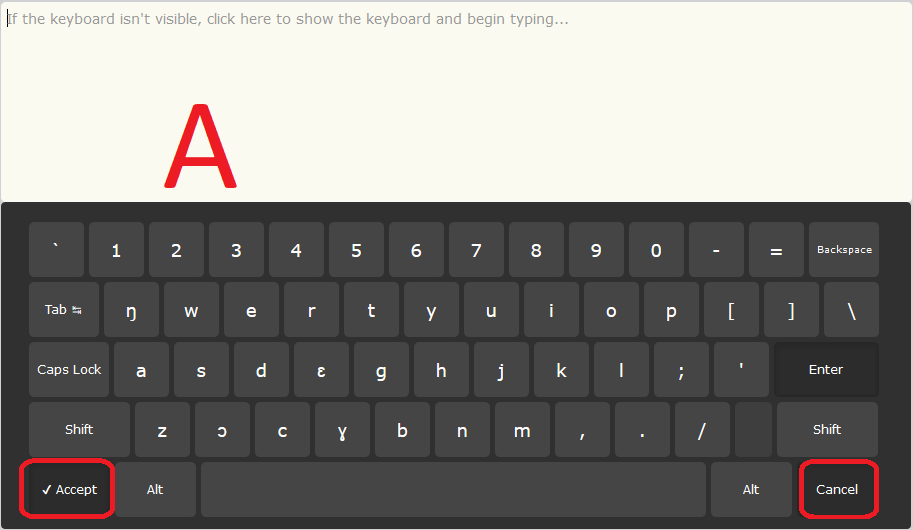
(i) General view
- The Area marked A is the space for typing into. When the keyboard below it isn't shown, clicking into this area reveals the keyboard.
- The Accept button keeps the text in the text area (if any) above and hides the keyboard.
- The Cancel button discards changes since the keyboard was opened and hides it. Click back in the text area above to show the keyboard again.
(ii) Normal (Unshifted)
- If you are used to QWERTY keyboard layout, then this layout is called ŋWERTY.
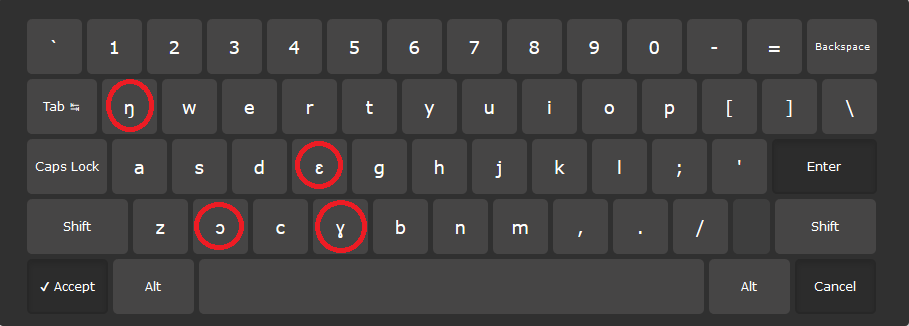
- See how ŋ, ɛ, ɔ and ɣ have taken places of q, f, x and v respectively. q and v are still accessible via the Alt key.
(iii) With Shift key pressed
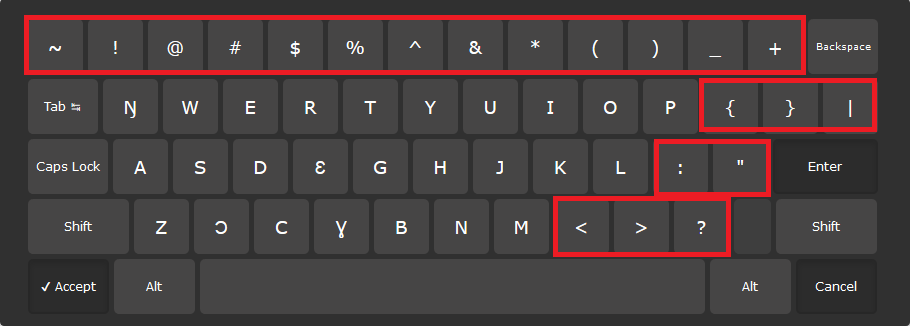
Here you get the CAPITAL (Uppercase) letters and the symbols pop into view on the rows marked in the image below.
(iv) With Alt key pressed
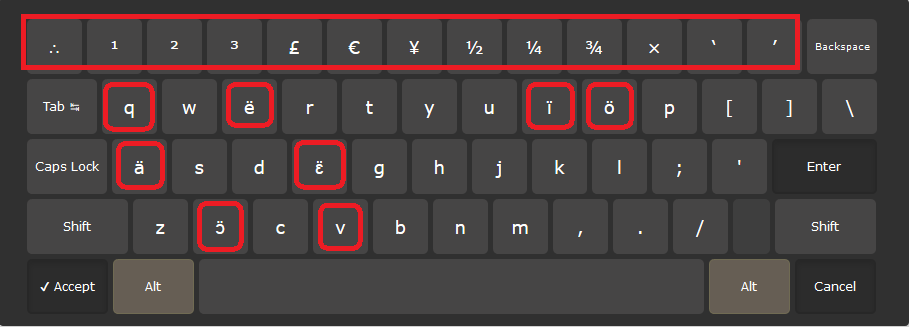
- q, ë, ï, ö, ä, ɛ̈, ɔ̈ and v appear when Alt is pressed.
- Symbols on the top row get swapped out with new ones.
- The Alt key is sticky meaning it remains active when pressed and should be pressed again to take the keyboard back to its previous state.
(v) With Alt and Shift keys pressed together
When Alt and Shift keys are pressed together:
- a new sets of symbols appear on the top row and next to the Enter key.
- Uppercase versions of the letters in view appear.
* Remember that the Alt key is sticky press it again to restore the keyboard to its previous state.
